# Quick look reads Markdown
URL: https://tuios.dev/blog/quick-look-reads-markdown
> Quick look shows a Markdown file the way its author meant it to look. HTML headings, badges, alerts, pictures, wide tables, closed details blocks and diagrams, in the terminal. What it does, and one idea that did not survive.
Quick look is the preview that opens over the panes when you press `space`
on a file in the rail, or click one. For code it was always good. For Markdown
it was not. I opened the tuios README in it one day, and it was a mess: raw
HTML tags, a row of badge URLs, and a centred heading that came out as a code
block because of its indent.
A README is often the first file I open in a new project, so I fixed that.
Quick look now reads a Markdown file the way its author meant it to look.
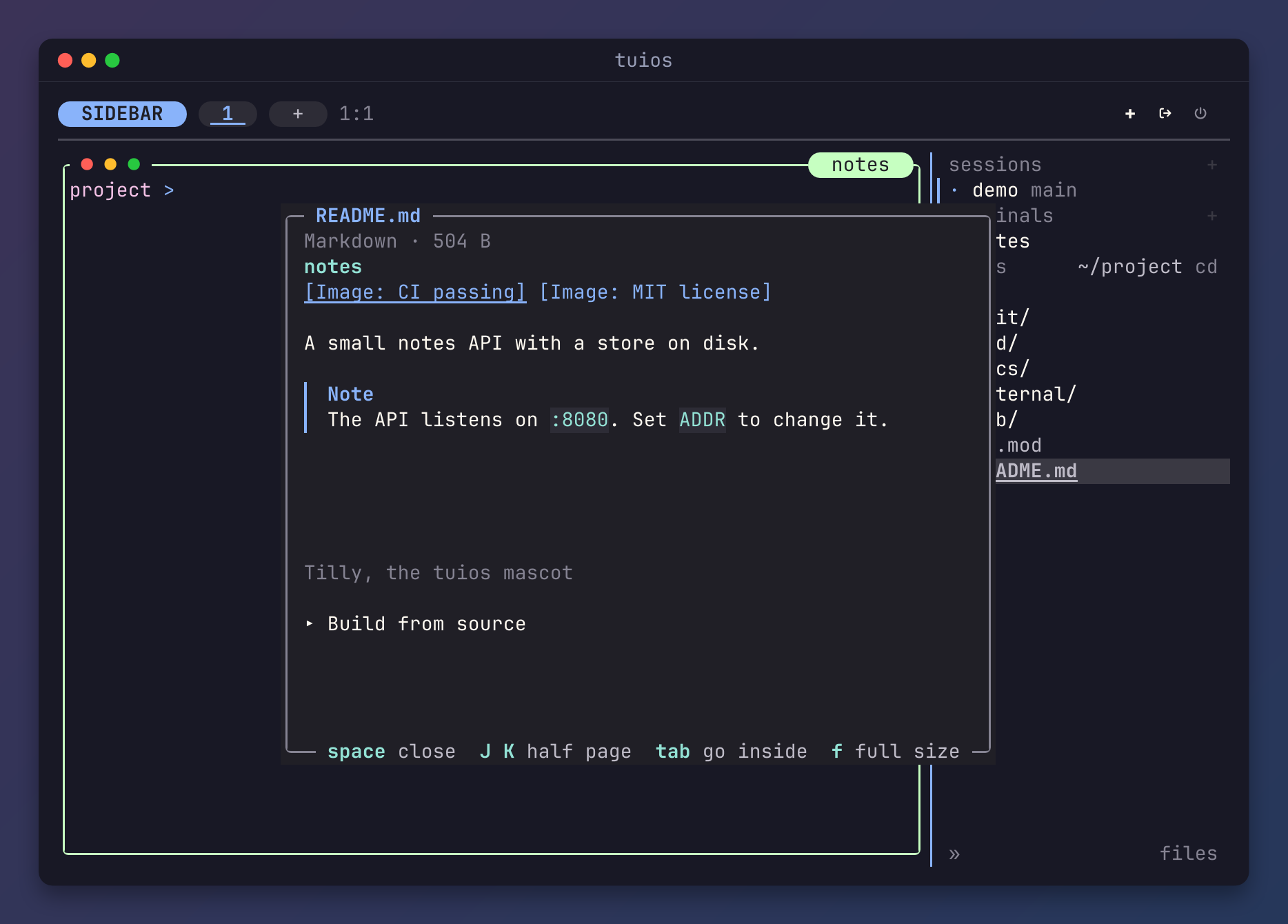
*A README written for GitHub, in quick look. ctrl+b f found the file, and space opened it.*
## What a README is made of
Most READMEs on GitHub mix Markdown with HTML. This is the top of the one in
the picture:
```md
notes


A small notes API with a store on disk.
```
Quick look now handles each part:
- **HTML.** A heading or a paragraph in HTML shows as formatted text. HTML with
an indent no longer turns into a code block.
- **Badges.** An image inside a link shows as the link's words, so a row of
badges is one short line of links.
- **Alerts.** `> [!NOTE]` and the other alert kinds show with their own colour.
- **Pictures.** An image alone on its line shows as a picture, when your
terminal can draw one. Quick look reads it from beside the file, on the
machine that has the file.
- **``.** Quick look shows the source for a dark or a light theme, to
match yours.
- **``.** The block starts closed, as on GitHub. `enter` opens it.
Quick look reads nothing from the web. An image at a web address, a WebP, an
SVG or an AVIF shows as one line of its words. A preview that fetches things
when you look at a file is a preview I would not trust.
## Tables and diagrams
Tables were the other weak spot. A wide table used to lose the end of its long
cells. Now a table keeps every cell, and a long cell wraps in its column. A
table with too many columns for the panel shows each row as a list of names and
values.
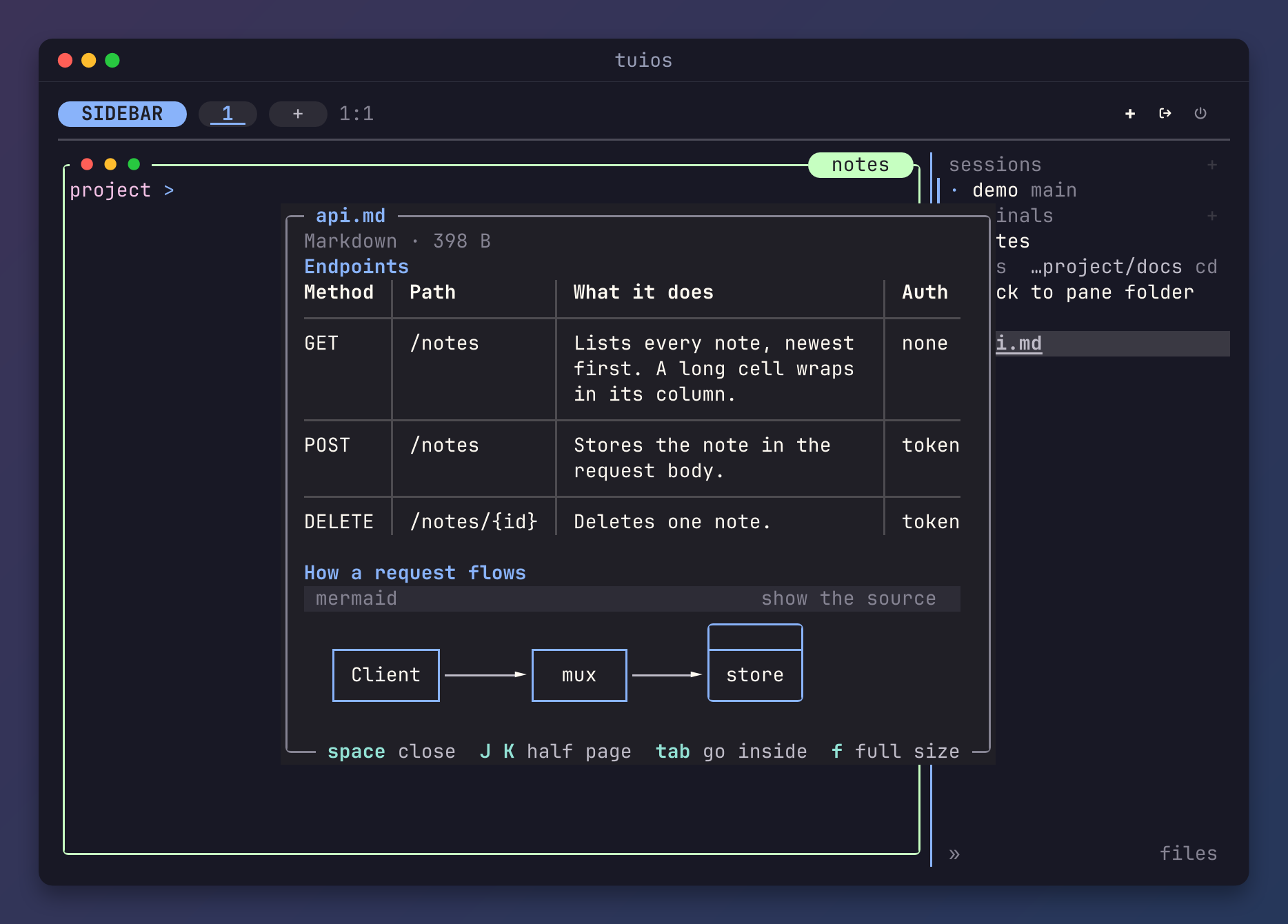
*A table that keeps every cell, and a Mermaid block drawn as a diagram.*
A fenced `mermaid` block shows as a diagram, and a `tml` block as a static
picture. This is the same renderer the agents view uses for the diagrams in an
agent's reply. To see the source of a picture, click the line above it. Click
again to see the picture.
## The idea that did not survive
My first version drew large headings. Some terminals can draw text at twice
its size with OSC 66, and a top level heading at twice the size looked great in
a still picture. In use, it did not. The letters stood too far apart, a
selection over a large heading went wrong, and a scroll broke the heading in
half. So I took it out. Headings are now bold and in the accent colour, which
reads well in every terminal.
## Try it
This is on tuios main now. Open the rail with `ctrl+b b`, find a file with
`ctrl+b f`, and press `space`. `space` or `esc` closes quick look again.
The [keybindings page](https://tuios.dev/docs/keybindings/panes-panels-and-workspaces#editing-sidebar-files) has the full list of what quick look
shows.